 PixelVibing
How to Make a Pixel Art Character Sprite with AI, Then Animate It
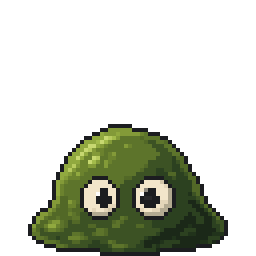
Characters are the hardest art in a 2D game. A prop only has to look right once; a hero or a monster has to read at a glance, match every other sprite, and then move, in every direction.
In this tutorial you'll make a pixel art character sprite with AI in PixelVibing, from one sentence, and then animate it without drawing a frame.
Typed: "a small green slime with big eyes". PixelVibing drew it, named it "Marshland Slime" and wrote it a description that fits the game it was made for.
What you need
- A PixelVibing account. Every new account starts with free credits.
- A project with a style guide. If you don't have one yet, follow step 1 of How to make pixel art game assets with AI.
Step 1: Describe the creature, not a prompt
Write what the character is, the way you'd brief an artist:
- Good: "a small friendly orange fox", "a grumpy dwarf blacksmith with a soot-stained apron", "a skeleton archer in rusty chainmail".
- Not needed: "8-bit, 64x64, pixel art style, trending, high detail". The style guide already says how your game's art looks, so those words only add noise.
In the web app or the Editor, choose Creature and type it in. From a terminal:
pixel-vibing-cli generate creature --instruction "a small friendly orange fox" --yes
Step 2: Add up to three references (optional)
Have a sketch, a photo of your cat, or a screenshot of a game whose characters you love? Add up to three reference images. They steer the design, while your style guide keeps the palette, outline and scale the same as the rest of your game.
pixel-vibing-cli generate creature --instruction "my cat as a tiny wizard" --reference cat.png --yes
Step 3: Animate it
A still sprite is half a character. Send it from the Library to the desktop Editor's Motion page, and it can be given:
- All eight facings (or four), so it turns smoothly on a top-down map.
- States: standing, mid-walk, mid-run, mid-attack, jump, crouch, hurt and death, each drawn in every direction and kept with the creature.
- Animations such as walk cycles and idles, each starting from one of those states, ready for your engine's sprite sheets.
The part that's hardest to draw by hand, keeping a character the same across every frame, is done for you.
Step 4: Fine-tune any pixel
Want the eyes bigger or the scarf a different red? Open the creature in the desktop Editor's Workbench, a full pixel editor with its palette, its eight views and its animation frames. Fix one pixel or repaint a whole frame. See How to edit AI pixel art in the PixelVibing Editor.
Step 5: Put it in your game
Export the sprite and its animations as sheets for PixiJS, Phaser or Godot:
pixel-vibing-cli export phaser
Character ideas that work well
- Starter monsters: a slime, a bat, a mushroom, a rat. Simple shapes read clearly at small sizes.
- Townsfolk: describe a job ("a fishmonger with a striped apron") rather than a personality.
- Bosses: name the silhouette ("a hulking crab with one giant claw") so it stands out on screen.
- Pets and companions: small, round and colourful, so they pop against the ground.
FAQ
What size will my sprite be? The size your style guide sets for the game, drawn on the real pixel grid, so it scales up crisp.
Will the second character match the first? Yes. Both are drawn from the same style guide, which is the whole point.
Can I use it commercially? Yes, what you make is yours.
Next: give your characters somewhere to walk. Read How to make a seamless pixel art tileset with AI.